
Real estate video templates are planning examples: they show the shot order, pacing, caption placement, and format choice for a repeatable listing video. Treat them as structure, not as a product feature. The same listing can become a full tour, a short social reel, a neighborhood clip, or a just-sold post when the photos, facts, and crop are planned up front.
The sections below map which structure fits which goal, how to keep a consistent visual style, and how to turn 12 to 20 listing photos into three export formats without rebuilding the plan for every property.
Why video templates make listing marketing consistent
A video template locks the order of information: opening hook, property facts, room sequence, standout feature, and closing action. That structure matters more than decoration because it keeps every listing easy to scan on a phone.
Templates separate the one-time planning work from the repeating production work. You decide where the price appears, how captions sit above platform controls, when the standout feature appears, and which format serves each channel. The tenth video should feel as intentional as the first because the structure is already decided.
Consistent branding compounds over time. Buyers see the same logo, the same colors, and the same closing card across your clips. That repetition reinforces your name as they scroll and builds the kind of recognition that generates inbound calls without paid ads.
The practical payoff is speed. An agent with a repeatable structure can move from photos to a finished draft without deciding the order from scratch each time. For the full strategy behind real estate video marketing, that kind of repeatable system is what separates high-volume producers from occasional posters.
Real estate video templates by type: listing tour, reel, neighborhood, and just-sold
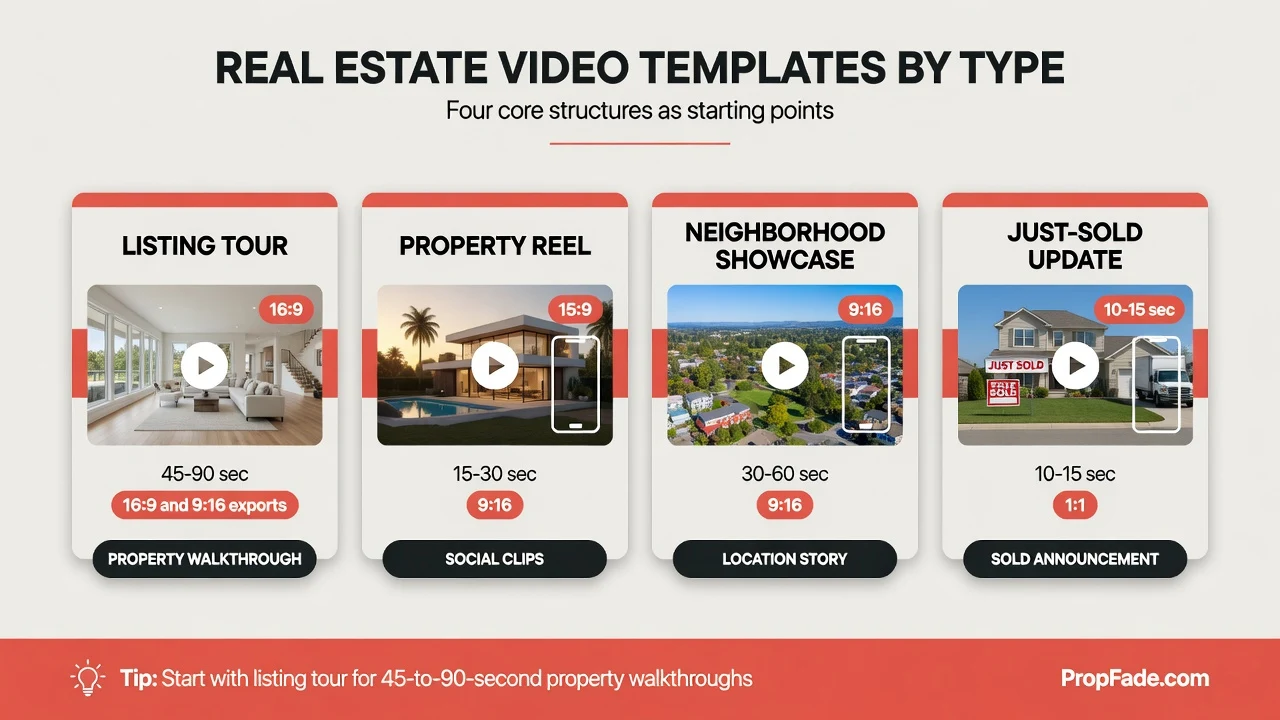
Use four core structures as starting points: a listing tour for 45-to-90-second property walkthroughs, a property reel for 15-to-30-second social clips, a neighborhood showcase for location storytelling, and a just-sold update for closing announcements.
Listing tour structure
The listing tour structure builds a 45-to-90-second walkthrough from 12 to 20 property photos. It opens on the exterior approach, moves through the interior highlights in buyer-walk order, and closes with a clear showing action. Use it for a listing page, a YouTube channel, or an email sent to your buyer list.
The tour should have a 16:9 version for your property page and a 1:1 version for the feed. Keep captions in the lower third, but leave enough padding for social-platform controls and website embeds.
Property reel structure (9:16 vertical)
The property reel structure is a 15-to-30-second vertical cut built for Reels, TikTok, and Shorts. It opens on the hook photo (typically the kitchen island or the primary view), shows the price and bed-bath count early, and closes with a simple showing prompt.
This format drives discovery on new listings. A consistent reel style across ten listings turns your social profile into a scrollable portfolio that buyers browse before they ever visit your website.
Neighborhood showcase structure
The neighborhood showcase structure builds a 30-to-60-second clip around the location rather than only the listing: a walkable main street, a local coffee shop, a park, or a school zone. It pairs neighborhood photos with captions that explain why the area matters to the buyer.
Run one neighborhood video per active listing to give buyers a picture of the life around the home. Location content also extends the useful life of a listing after the open house date. For how neighborhood clips fit into a broader program, see the real estate video marketing guide.
Just-sold and market-update structure
The just-sold structure uses a single exterior photo, the area, and the result, then turns them into a 10-to-15-second announcement clip. Post it within 24 hours of closing for the strongest engagement signal. A market-update variation can use a simple stats card (median price, average days on market, list-to-sale ratio) for a quick neighborhood clip.
Publishing regular just-sold posts builds a visible record of your closings on social search. Buyers researching agents in a neighborhood often check who posts closings most consistently before making contact.
Customize a reusable video style: colors, captions, and closing action
Set your visual rules before you make the next video: one primary color, one readable font, one caption position, and one closing action. The goal is consistency across listing tours, reels, neighborhood clips, and just-sold updates without making the video feel like a generic promo.
A simple style guide is enough. Pick a dark text color for bright rooms, a light caption style for darker rooms, and one lower-third pattern for price, bed count, bath count, and neighborhood. Keep the logo or agent name near the close so it does not compete with the property details.
Music is a separate licensing decision. If you add a track in an editor, use a commercial license that covers the platforms where the listing will be posted. For photo-to-video output with voiceover, keep any music low enough that the property facts remain clear.
Captions and on-screen text should be planned before export. Fill in the property address, price, beds, baths, and one feature line, then review each format separately. A caption that reads well in 16:9 can sit too low in 9:16 after a social app adds native controls.
| Style rule | Recommended setup | Why it matters |
|---|---|---|
| Primary color | One readable brand color with a high-contrast text option | Keeps listing videos recognizable without covering property details |
| Caption safe zone | Review 9:16, 1:1, and 16:9 exports separately before posting | Social controls can cover text that looked fine in the editor |
| Listing fact order | Address, price, beds, baths, one feature line | Viewers understand the property before the edit moves on |
| Closing action | Schedule a showing, see full listing, or message for details | Every video ends with one clear next step |
For the broader editing toolkit that sits alongside templates, see video editing software for real estate and the full real estate video editor feature breakdown.
Make a listing video from photos
Upload 12 to 20 listing photos, confirm the property details, and export. PropFade renders a 9:16 vertical, a 1:1 square, and a 16:9 landscape cut in about two minutes from a single project.
The four steps:
- Upload your listing photos. Twelve to twenty shots works well: start with the exterior approach, move through the key rooms, and end on the standout feature. Use standard JPEG and PNG files from any phone or camera.
- Confirm the listing details. Fill in the address, price, beds, baths, and one feature line. These details drive the voiceover draft and caption text, so check spelling and fair-housing-sensitive language before export.
- Review the caption placement. Confirm that the price, bed count, bath count, and address stay readable in each crop. Vertical video needs extra bottom padding because app controls cover part of the screen.
- Export three formats. The 9:16 cut goes to Reels and TikTok, the 1:1 to the feed and email, and the 16:9 to your listing page and YouTube. Review all three from the same project before posting.
For the AI editing workflow, see the ai real estate video editor. To compare full output options and photo-to-video steps, see the real estate video maker.
Make videos from listing photos
Upload your photos and get a finished video back in about two minutes.
Frequently asked questions
Start with a reusable structure: listing tour, property reel, neighborhood showcase, or just-sold update. Use it as a shot-order and caption guide, then adapt the footage or photos to the platform where the video will run.
Yes, as long as you treat them as starting points and verify the final format, captions, and licensing. A generic social layout still needs real listing facts, clear property photos, and separate 9:16, 1:1, and 16:9 exports.
Use the template as a planning structure: decide the hook, room order, caption fields, and closing action. If you are working from listing photos, upload 12 to 20 images, confirm the property details, and export 9:16, 1:1, and 16:9 versions from the same project.